


Reflex Cloud - Quick Start
So far, we have been running our apps locally on our own machines. But what if we want to share our apps with the world? This is where the hosting service comes in.
Quick Start
Reflex’s hosting service makes it easy to deploy your apps without worrying about configuring the infrastructure.
Prerequisites
- Hosting service requires
reflex>=0.6.6. - This tutorial assumes you have successfully
reflex initandreflex runyour app. - Also make sure you have a
requirements.txtfile at the top level app directory that contains all your python dependencies! (To create arequirements.txtfile, runpip freeze > requirements.txt.)
Authentication
First run the command below to login / signup to your Reflex Cloud account: (command line)
You will be redirected to your browser where you can authenticate through Github or Gmail.
Web UI
Once you are at this URL and you have successfully authenticated, click on the one project you have in your workspace. You should get a screen like this:
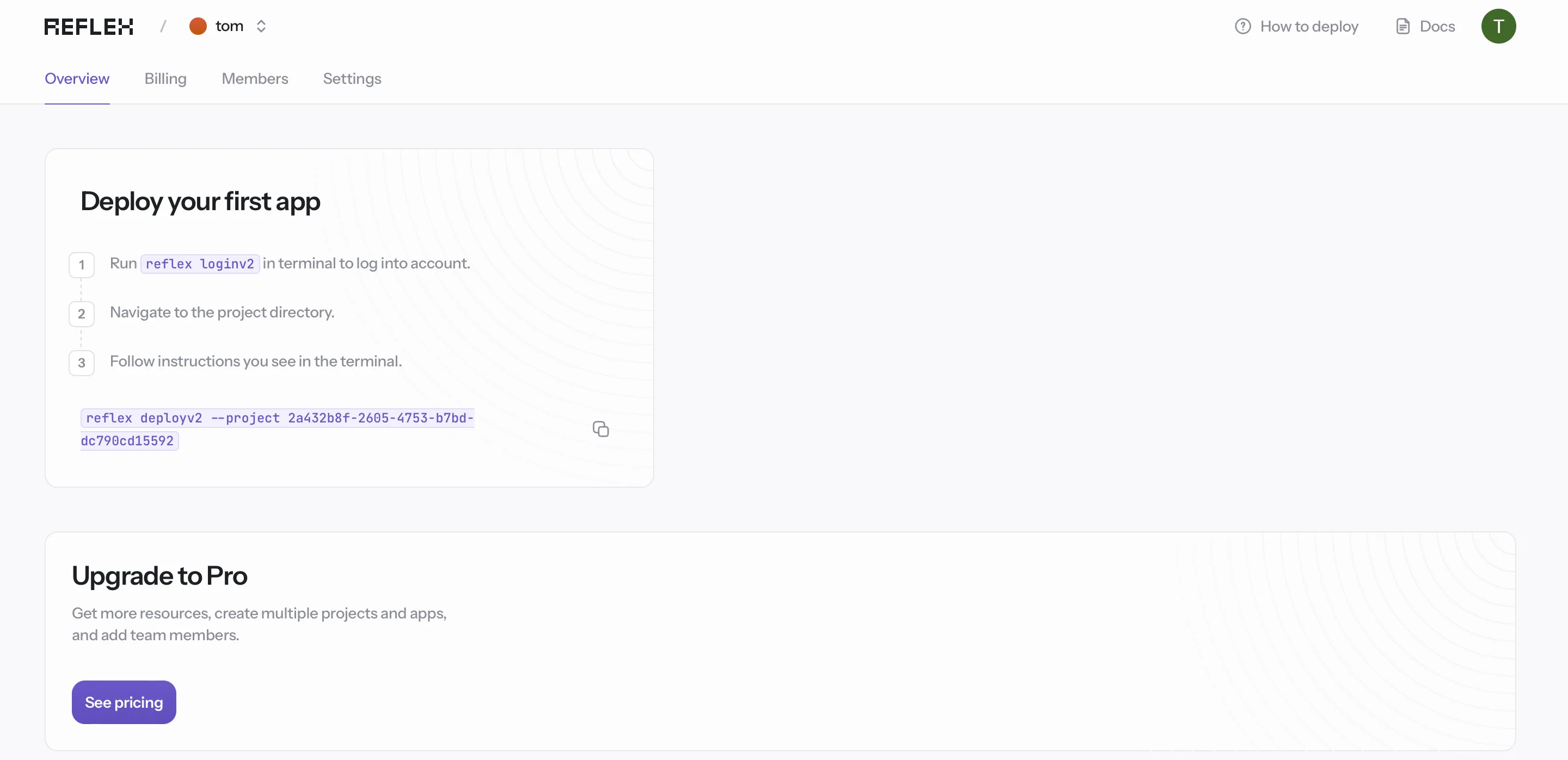
This screen shows the login command and the deploy command. As we are already logged in, we can skip the login command.
Deployment
Now you can start deploying your app.
In your cloud UI copy the reflex deploy command similar to the one shown below.
In your project directory (where you would normally run reflex run) paste this command.
The command is by default interactive. It asks you a few questions for information required for the deployment.
- The first question will compare your
requirements.txtto your python environment and if they are different then it will ask you if you want to update yourrequirements.txtor to continue with the current one. If they are identical this question will not appear. To create arequirements.txtfile, runpip freeze > requirements.txt. - The second question will search for a deployed app with the name of your current app, if it does not find one then it will ask if you wish to proceed in deploying your new app.
- The third question is optional and will ask you for an app description.
That’s it! You should receive some feedback on the progress of your deployment and in a few minutes your app should be up. 🎉
For detailed information about the deploy command and its options, see the Deploy API Reference and the CLI Reference.
If you go back to the Cloud UI you should be able to see your deployed app and other useful app information.
