
Purchase and activate an activation code for each computer that will be running PHDwin.
The software can only be installed on the licensed computer.
Use a license server allowing a specific number of users to access PHDwin from any computer on the network.
The software can only be installed on the licensed computer.
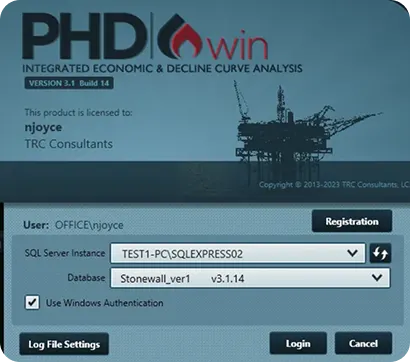
Send to: [email protected]
Subject: License Request for PHDwin Version 3
Tip: Use the “Request” button in the app to auto-generate the email, or take a screenshot (Ctrl + PrintScreen).
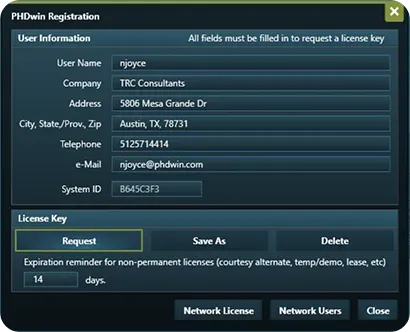
Once processed, the license team will email you back a license file.
1. Open the email from [email protected]
2. Save the attachment named PHDwin.lic to:
3. C:\Program Files\TRC Consultants\PHDwin 3.1\Config
4. Restart PHDwin to confirm activation.
1. Open PHDwin and click Registration.
2. Click the Save As button.
3. Copy & paste the license string from the email.
4. Click Apply and Close.
A single-user unlock license file allows a single individual to access PHDwin V3 on a single machine. Access to the software is limited to the computer on which the software is installed.
If you purchased a standalone license for a specific computer, you have a Single-User installation. If your organization manages a pool of licenses that multiple users share (concurrently), you likely have a Network/Concurrent installation. Check with your IT department or the person who purchased the software if you are unsure.
