- Image to Text
Online image to text converter
Edit the text from a flat image without starting over. Using AI, Canva’s Grab Text (Pro) makes it possible by lifting the text from your photo and making it editable again.
or drop it here
Learn about Canva's upload formats and requirements. See how we use your content in our Privacy Policy.
How to convert image to text
Upload your image
Select the “Upload your image” button or easily drag and drop your files into the section.
Edit your design
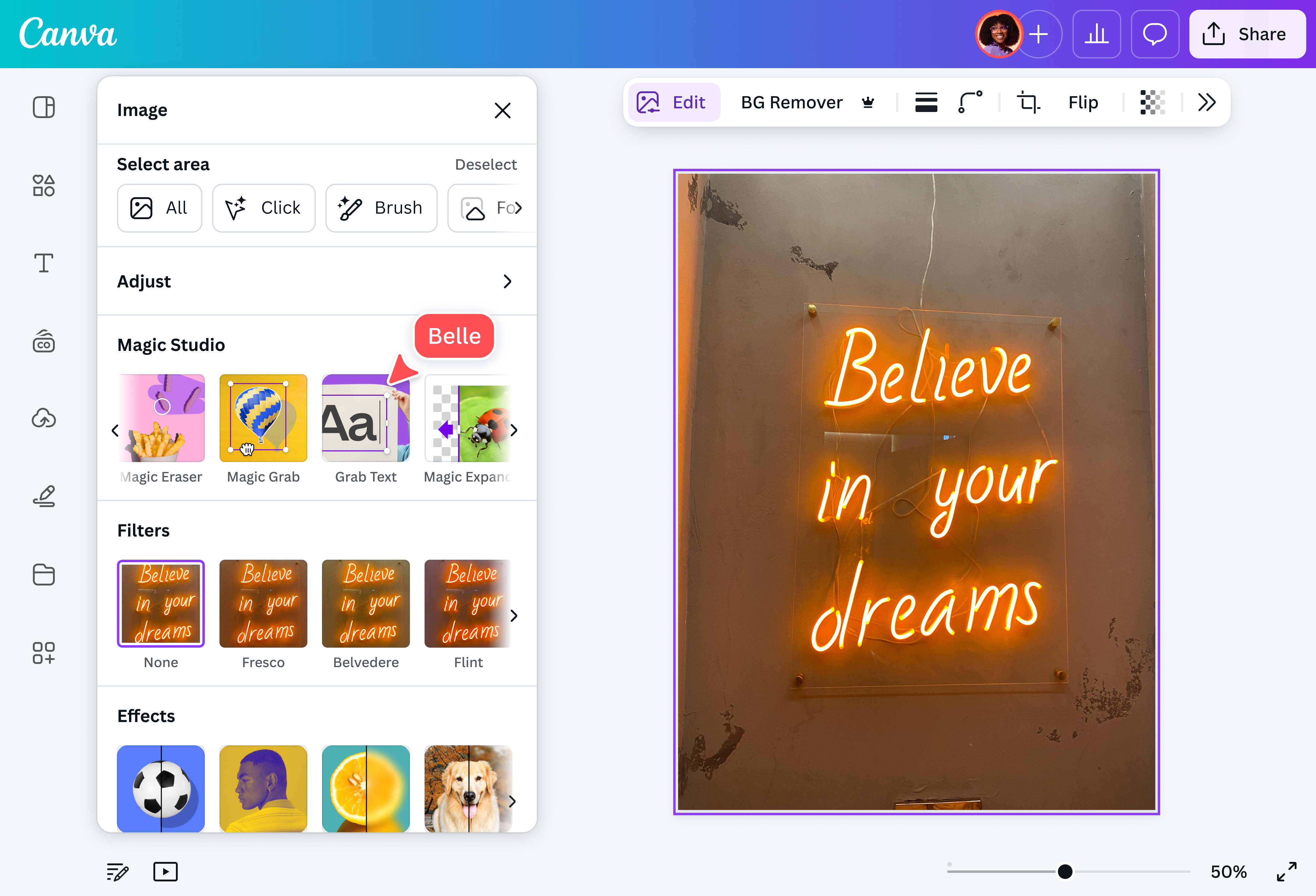
Under Magic Studio, select Grab Text (Pro) and choose which text to grab and edit.
Download your design
Finally, save and download your design as a high-resolution JPG or PNG.
Edit right away — no need to start over

You can change any word from a fully-rendered picture into editable text in seconds, without having to manually edit it out, or opening a large design file. Simply upload your picture to Canva, launch the Photo Editor, and choose Grab Text (Pro). In just a few clicks, your image is turned into text — quickly and automatically.
Full creative control with text customization

Once your image is converted to text, you’re free to style it your way. Need to make your headline pop? Change the font, size, or color, add animations or effects, and move it anywhere on your design. If you’re keeping it more subtle, you can layer it above or below other elements to match your visual layout perfectly.
Versatile for any project

Use this tool for any project — extract text from flyers and posters, email assets, or social media posts to make sure you got the slogan or brand messaging right. Edit your infographics so they present accurate information for your reports, presentations, and websites. With our image to text converter, never miss a detail again!
All-in-one editing with Canva’s Magic Studio™

Making other edits to your photo on the way? While you’re at it, go ahead and change the brightness, contrast, color, cropping, and size of your image with Canva's AI-powered photo editing tools. You can remove backgrounds(opens in a new tab or window), add in elements(opens in a new tab or window), expand your image(opens in a new tab or window), and more! You can even use third-party editing apps without leaving the editor.
How to extract text from an image

Frequently asked questions
- An Image to Text converter is a tool that extracts written text from an image using smart technology. It helps you quickly turn scanned documents, photos, or screenshots into editable and searchable text.
- There are many ways to extract text from an image, but Canva makes it simple. The Grab Text (Pro) feature lets you edit or copy text from an image in seconds. No more editing your whole image from scratch. Just upload your photo on Canva, go to Magic Studio, select Grab Text (Pro), and start editing.
- Canva’s Grab Text feature is built-in to the Canva photo editor and comes with a Pro subscription.
- Yes, you can! Just keep in mind that text outside your selection might get distorted, especially if it’s very close to what you selected. We’re aware of this and are working to improve it. For now, try grabbing all the text in the image or selecting all nearby text for better results.

@navneet4
