- Image Upload

Free Image Uploader
Quickly upload, edit, and share your photos with Canva’s image uploader—perfect for social posts, product listings, e-vites, and beyond!
or drop it here
Learn about Canva's upload formats and requirements. See how we use your content in our Privacy Policy.
How to upload an image
Upload an image
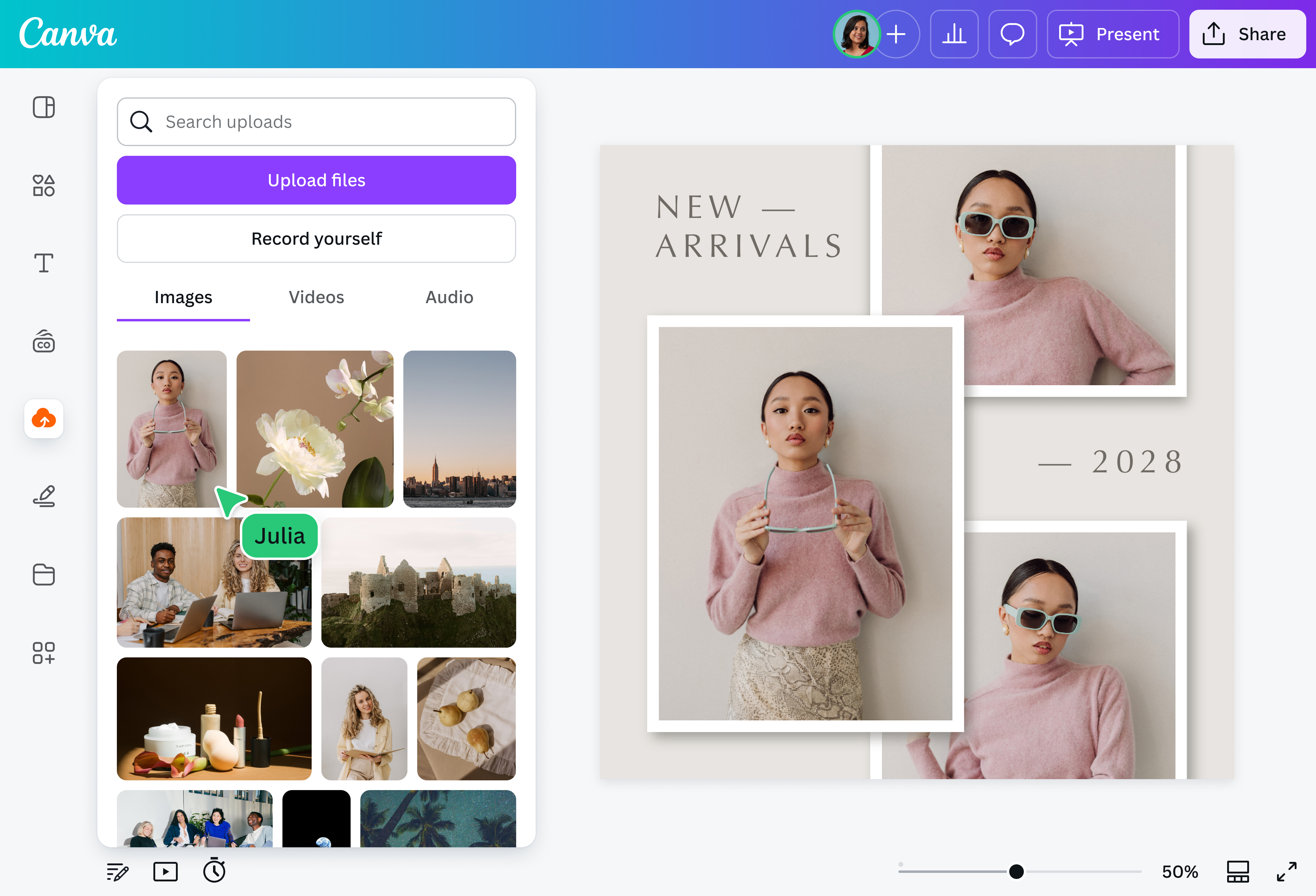
Select the “Upload your image” button or easily drag and drop your files into the section.
Edit your design
Make some quick touch-ups on your image using our intuitive editor and AI-powered tools.
Download your design
Finally, download your design as a PNG, JPG or other file format for free. Share it online, too, with just a click.
Upload and edit photos in one place

After uploading your photos to Canva, you can instantly refine and transform your images. Fix colors, touch up flaws, remove distractions, and replace elements with our AI-powered photo editor. Wipe away elements with Magic Eraser (Pro)(opens in a new tab or window), clear entire backgrounds in a single click with Background Remover (Pro)(opens in a new tab or window), and auto-adjust images with a tap using our AI Photo Enhancer(opens in a new tab or window).
Create scroll-stopping content

Bring your social media to life—upload photos to create stunning posts, engaging stories, and eye-catching profile pics for Instagram, Facebook, TikTok, and more. Browse our templates(opens in a new tab or window) and use the drag-and-drop editor to upload your pictures and add text, graphic elements, stock photos, and more. Once you’re done, share your posts directly from Canva.
Captivate audiences with on-point marketing collaterals

With our intuitive design tools, easily craft marketing collaterals that speak to your audience and drive engagement. Upload your photos to start making eye-catching printed and digital assets, from flyers(opens in a new tab or window) and banners(opens in a new tab or window) to social posts and YouTube thumbnails(opens in a new tab or window). Start from scratch or find a customizable template to get a head start.
Design e-commerce listings that sell themselves

Upload an image and create e-commerce listings that stand out. Enhance your product photos with professional retouching, lighting adjustments, and dynamic mockups(opens in a new tab or window). Collaborate with your team seamlessly by sharing a link to leave comments, tagging members, assigning tasks, and tackling suggestions right in the editor.
How to upload a photo online

Frequently asked questions
On Canva, there are format requirements and storage limits:
- Canva free users can upload up to 5GB of media.
- Canva Pro users can upload up to 100GB.
- Canva Business users can upload up to 500GB per team.
- Canva Enterprise users can upload from 1 to 5TB per team.
Canva supports JPG, PNG, and SVG formats for images. Just drag and drop to crop, resize, and edit them. When you’re done designing, download your design in any format with a single click.
Quality, file size export limit, scale, compression, CMYK color profile options, and transparent PNGs and SVGs are available to accounts with the Canva Pro, Canva for Teams, Canva for Education, and Canva for Nonprofits plans.
- You can upload your photos via the Product Photos app to edit your photos in bulk. This app is perfect for polishing your products for sale. Just upload photos or folders and select a style to design these images right away.

@navneet4
