- JPG Converter
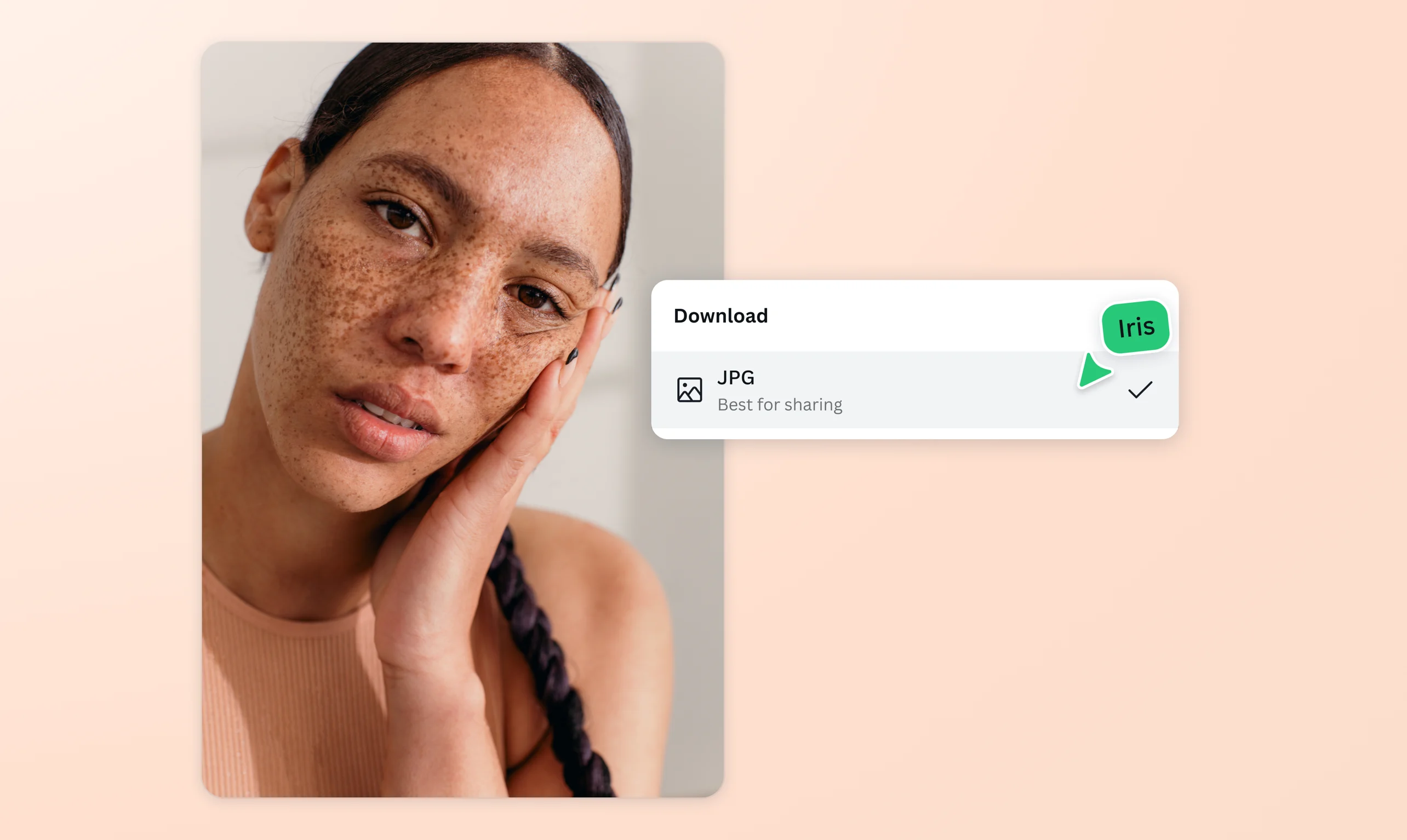

Standardize your images with the free JPG converter
Transform images into easy-to-share standardized files online with the JPG converter on Canva. Turn any image into a universal JPG that works with the widest range of applications in a few clicks.
or drop it here
Learn about Canva's upload formats and requirements. See how we use your content in our Privacy Policy.
Compress images into instant JPGs

Easily share and post your images online by converting them with the JPG converter on Canva. Switch to JPG from various file formats: PNG, BMP, GIF, WebP, HEIC/HEIF, or PDF.
Why convert to JPG? The JPG format is the most accessible image file format, supported by most image-viewing programs. Converting to JPG also compresses your images without significant loss in resolution.
Polish your image before converting to JPG

Beyond easy JPG conversion, Canva’s photo editor(opens in a new tab or window) allows you to polish any image. Adjust the brightness and saturation to perfection. Or, tell a story with effects(opens in a new tab or window), graphic elements, and text.
Discover infinite possibilities with AI through Magic Studio(opens in a new tab or window) (Pro). With a prompt, you can transform your image with Magic Edit(opens in a new tab or window), erase unwanted elements with Magic Erase(opens in a new tab or window), and extend images with Magic Expand(opens in a new tab or window).
Convert and create in one platform

No need to switch to another platform to take your converted JPG to new heights. Canva’s visual suite is the perfect platform to turn your image into a beautiful asset worth sharing. Whether you’re looking to insert your JPG on branded social media(opens in a new tab or window) posts, school presentations(opens in a new tab or window), a full-blown website(opens in a new tab or window), or turn it into an animation(opens in a new tab or window), Canva has you covered.
Generate JPGs from scratch with AI

With the AI image generator(opens in a new tab or window) apps on Canva, you can fully take control of your image. No need to spend hours looking for the perfect image. Just type what you have in mind and watch AI bring your vision to life in seconds.
How to convert an image to a JPG


Frequently asked questions
A JPG/JPEG converter is a tool or software that converts various file formats into JPG images. JPG/JPEG stands for Joint Photographic Experts Group. It's the standard image file format supported by a great number of platforms and programs.
The best JPG converter depends on your preference and requirements. If you need an image converter where you can edit your image or incorporate it into a design, Canva’s JPG converter is an excellent option.
Our converter tool lets you upload and convert your file to JPG in just a few clicks. If you need to make some changes to your image before conversion, you can also easily do that on Canva, too!
Want to feature your JPG on a design or creative asset? Just upload your converted JPG to your Canva folder, and you can easily incorporate it into your project.
Converting your image into a JPG lets you share your image with ease in two ways. JPG is a compressed file format, so it’s not as heavy, and most users can easily open it as it’s recognized by many widely used programs. For these reasons, JPG is the recommended file format for web sharing and posting.
To convert an image to JPG, just upload the file to our online JPG converter. Then, choose the JPG/JPEG file format from the dropdown menu before clicking Download.
If you're converting PNG, HEIC/HEIF, and WebP images, these are the format requirements:
- Under 25MB in size
- Not more than 100 million total pixels (width x height)
- For WebP: only static images are supported currently
- Absolutely. You can use the JPG converter with your Canva Free account.
Yes. JPG is a compressed image file format, so by converting to JPG, you can reduce your file size.
This makes JPG an ideal file format if you want to optimize your image for email attachments and web uploads or transfers. It’s also the best file format if you just need to post previews or thumbnails for school work or presentations.

@navneet4
