- JPG to PNG Tool
Free JPG to PNG converter
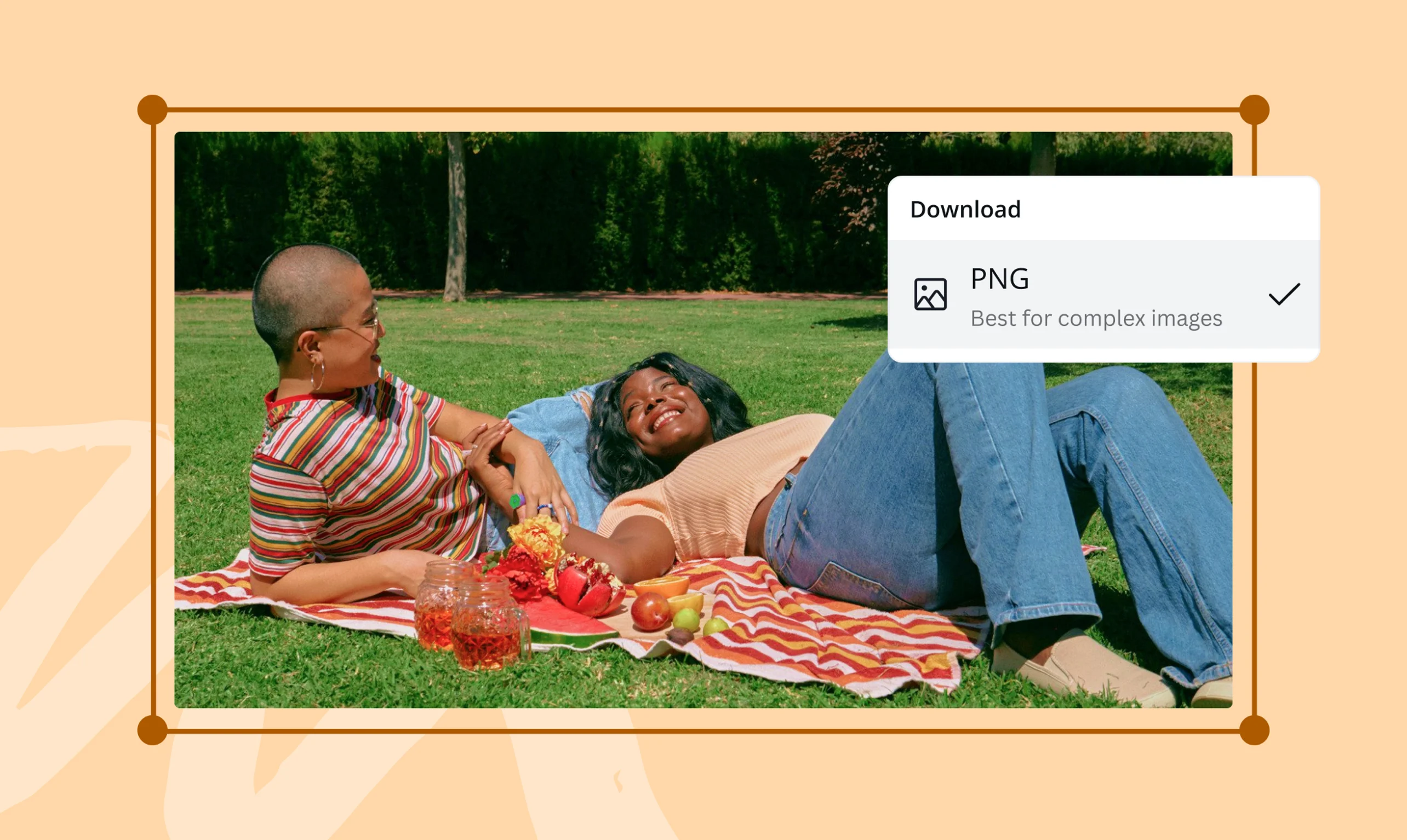
Enjoy transparent photos without compromising on quality by converting JPG to PNG. Use Canva's online JPG to PNG converter to remove distracting backgrounds, create overlays, and produce sharp, crisp images every time.
or drop it here
Learn about Canva's upload formats and requirements. See how we use your content in our Privacy Policy.
Try these image converter tools
Edit and convert images and more. All the photo editing tools you need!
How to convert JPG to PNG
Upload your image
Select the “Upload your image” button or easily drag and drop your files into the section.
Edit your design
Make some quick touch-ups on your images using our beginner-friendly editor.
Download your image
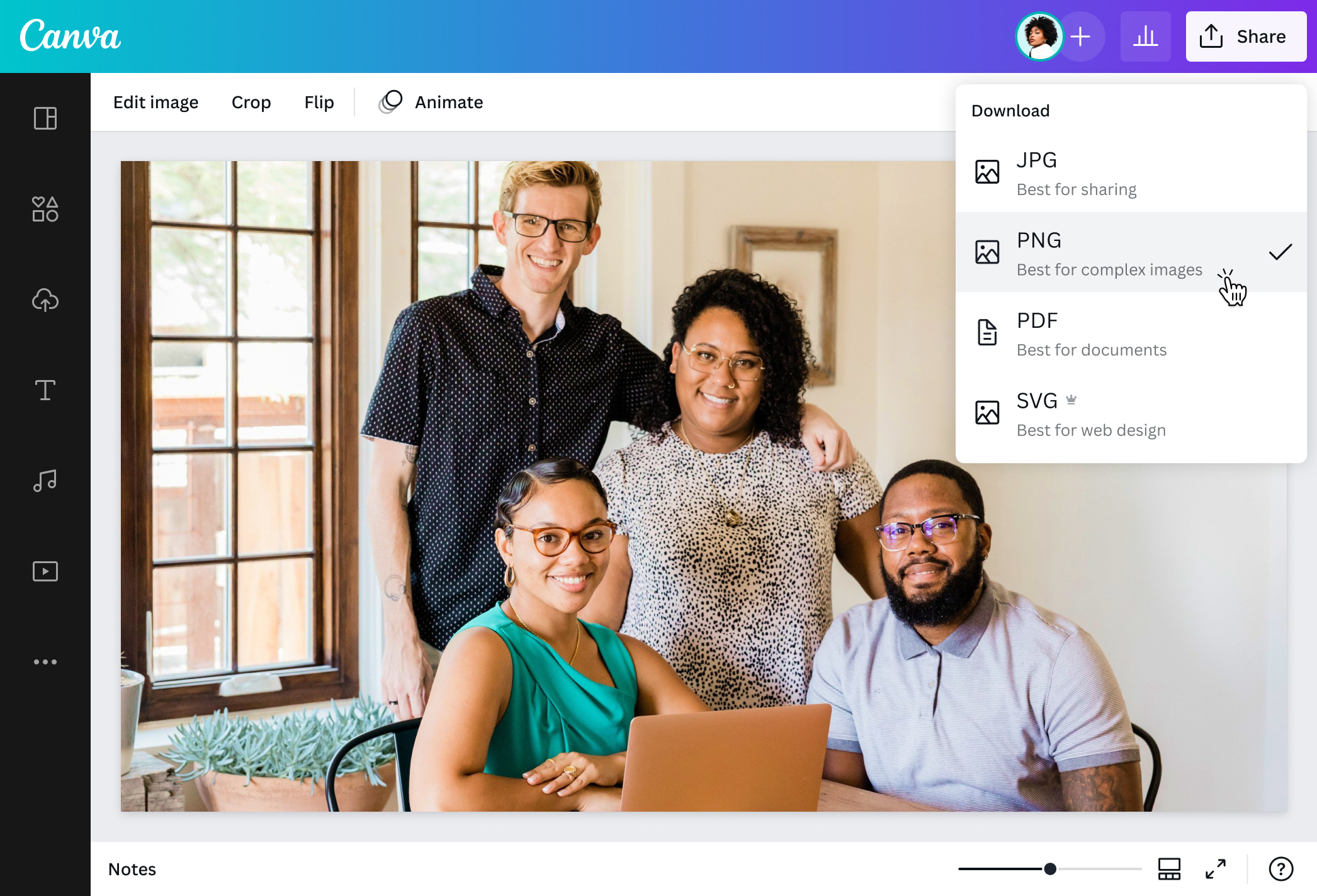
Finally, convert from JPG to PNG for free by downloading your design as a PNG image.
Get crisp, high-resolution images

Turn your JPG images to PNG to keep your photo's last color, line, and minute detail in their original quality. With Canva's JPG to PNG tool or PNG maker(opens in a new tab or window), have confidence that your work will stay the same, no matter how many times you edit or save the file. Enjoy lossless photo resolution that remains consistently high-res across any page, device, or project.
Give your photos a creative flair

Do more than just convert JPG to PNG or Image translate(opens in a new tab or window). Take your content to the next level with Canva's impressive slew of features. Resize or adjust your image to fit every online platform. Apply stunning filters to create wow-worthy photos, or add text(opens in a new tab or window) in stylish fonts to tell a better story. You can also explore our media library to find icons(opens in a new tab or window), illustrations, and other graphic elements to enhance your design. With Canva's powerful photo editor(opens in a new tab or window), you have all the tools to transform ordinary images into instant works of art.
Take out the clutter

Remove distracting backgrounds and keep only what matters. Canva's Background Remover(opens in a new tab or window) lets you take out your image's background in one effortless click—like magic! Now you can achieve exactly the look you're after. Replace the background with a solid white color(opens in a new tab or window) to get the perfect headshot, highlight your subject to create stand-out product photos, or simply save your new background-less JPG to a transparent PNG to enjoy greater flexibility. This feature is only available on Canva Pro, and well worth it. Canva also offers a Video Background Remover(opens in a new tab or window) for your motion content.
How to change JPG to PNG

Frequently Asked Questions
- JPG was designed for efficiency, while PNG was for quality. Saving a photo in JPG format tells your computer to compress it into the smallest size possible by keeping only the most important data about your images. This is great when you don't need pictures to be super crisp (like with real-world photographs) or if storage is an issue. Meanwhile, PNG saves all data about your image down to the last pixel. PNG images are thereby sharper, but the file sizes can be bigger.
- PNGs are great for many things: small files that need to be scaled, like logos or headers, images that need to be as sharp and high-resolution as possible, and photos with no background. PNG is commonly used with illustrations, vectors, graphics, charts, infographics, and more.
- PNG – like JPG – is a static image type and doesn't support animation. For animations, use GIF or SVG for bigger project files. Otherwise, PNGs are fantastic at retaining image quality, making them great for web design and graphics-based projects.

@mahimagirdhar
