


 Watch video





 Sign in with Google
YouTube Strategy
How to add chapters on YouTube videos and why you definitely should


- YouTube chapters are indexed by Google and can earn your video Key Moments, the timestamped links that appear inside a video result in search.
- To add chapters manually, your first timestamp must be 0:00, and you need at least three chapters in your video description.
- YouTube’s automatic chapters are already running on your uploads whether you asked for them or not. They’re better than nothing, but they’re unreliable and they aren’t written with your keywords in mind.
- Every chapter title is an optimization opportunity: treat them like mini-headlines, not generic section labels.
- TubeBuddy’s Chapter Editor lets you add and edit chapters without switching away from your video, cutting down the time it takes to optimize each upload.
Two minutes. That’s about how long it takes to add chapters to a YouTube video. Too many creators skip this simple and important step… and then wonder why their tutorials and how-to videos don’t rank.
YouTube chapters do more than help viewers navigate your content. They’re a direct SEO signal that YouTube and Google both use to understand and surface your video. Skip them, and you’re leaving views, watch time, and search visibility on the table. Doing this kind of unglamorous optimization work on every upload is exactly what separates the channels that grow from the ones that don’t.
Here’s how to add chapters the right way. We’ll run through how to do it manually, automatically (not advised), and finally with TubeBuddy’s Chapter Editor. We’ll detail why the chapter titles you use matter much more than most creators realize.
Get an unfair advantage on YouTube
Give your YouTube channel the upper hand and easily optimize for more views, more subs, and more of every metric that matters.
How do YouTube chapters help with SEO?
YouTube itself confirms that “chapters help viewers better navigate and enjoy your videos” and that chapters are a signal it uses to surface your content to the right viewers. Chapters help viewers. They also help algorithms understand your video, which in turn helps you get more views.
It’s a rare win/win/win.
Off YouTube, the benefits are even greater. Videos with chapters are eligible for Key Moments, the timestamped links that appear underneath a video result and can place your video at or near the top of a search results page. Unlike a standard video result, Key Moments skip the viewer directly to the point in your video where Google thinks the answer appears. That kind of placement drives real, incremental traffic. And if you answer the viewer’s question, they’re far more likely to engage your content.
Worth knowing: website owners who host their own video have to implement structured data to get this, and Google restricts who’s eligible. You don’t. On YouTube, the description does the work.
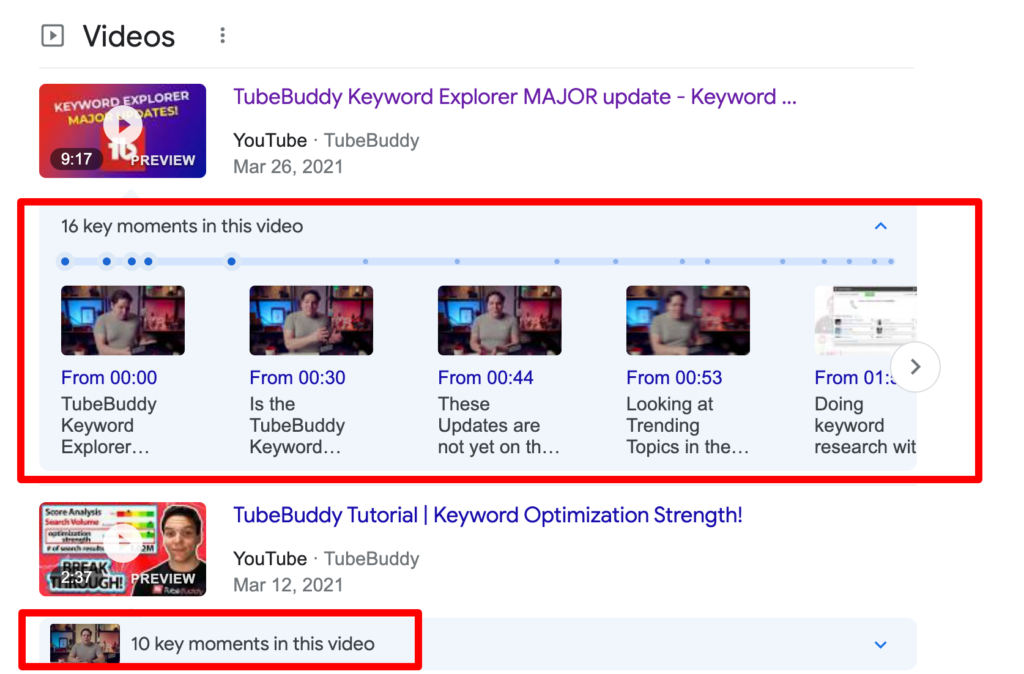
Key Moments pull mostly from tutorial and how-to content, but every video with chapters is eligible. Your chapter titles are the primary content Google pulls from when it decides whether your video is worth highlighting.
How can I add chapters to a YouTube video?
There are two ways to add chapters: manually or automatically. Manual chapters give you more control and are better for SEO. Automatic chapters are faster and better than nothing (and maybe a decent starting point for your manual chapter strategy) but they’re not optimized.
Where to find the description field
Chapters aren’t a separate tool in YouTube Studio. They live in your video description, so that’s where you’re headed:
- Sign in to YouTube Studio
- Click Content in the left menu
- Click the video you want to add chapters to
- Scroll to the Description field
That’s it. There’s no chapters panel to hunt for.
How to format manual chapters
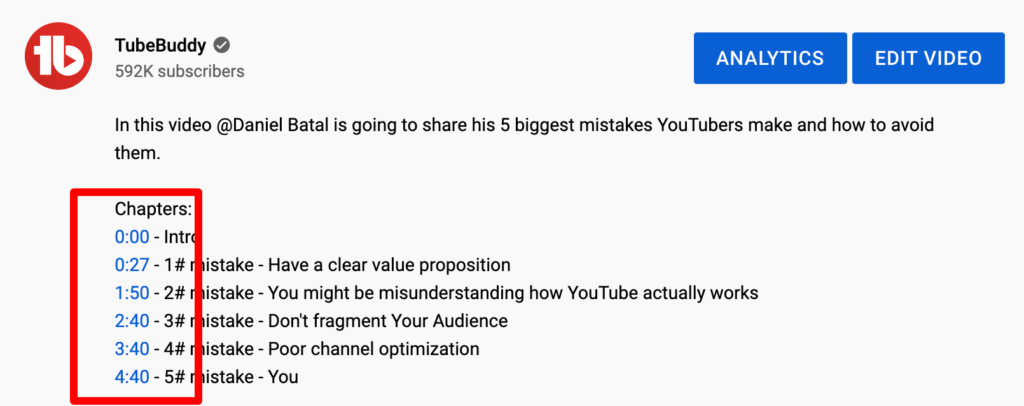
In your video description, create a list of timestamps starting at 0:00.
- Put each new chapter on a new line
- Start with the timestamp (0:00) then a separator (e.g. – or | or —) then the chapter title
Note: the separator is not required… we just think it looks nice - Use MM:SS for videos under an hour, H:MM:SS for anything longer
- Ensure you add at least three chapters. This is required for them to appear on the video timeline
- Ensure all chapters are at least 10 seconds long
- List your timestamps in ascending order
You may have read that your timestamps need to cover 100% of your video. They don’t. That requirement appears on a lot of blogs and it isn’t in YouTube’s documentation. The actual rules are the ones above: three chapters minimum, the first at 0:00, ascending order, 10 seconds minimum each. Nothing about full coverage.
Add your timestamps near the top of your description but not at the top. The first 200 characters of your description do important SEO work, so keep those for your primary keyword and a strong hook. Put your chapter list just below that. For more on how to structure your description, see how to write the best YouTube descriptions for the highest rankings.
Here’s what a formatted chapter list looks like:
0:00 – Introducing the best vegan chocolate cake
1:00 – Why this is the best vegan chocolate cake
2:19 – Ingredients
4:23 – Baking your vegan chocolate cake
5:41 – My secret (vegan) frosting trick
7:01 – Taste test: is this really the best vegan chocolate cake?
Save your video and the chapters will appear on the timeline. The timestamps will also become clickable links in your description automatically.
This is important: chapter titles aren’t just labels. They’re crawlable text that YouTube and Google use to understand what each section is about. Write them the way you’d write a headline: descriptive, specific, and keyword-relevant where it makes sense naturally. There’s a whole section on this below, because it’s the part most creators get wrong.
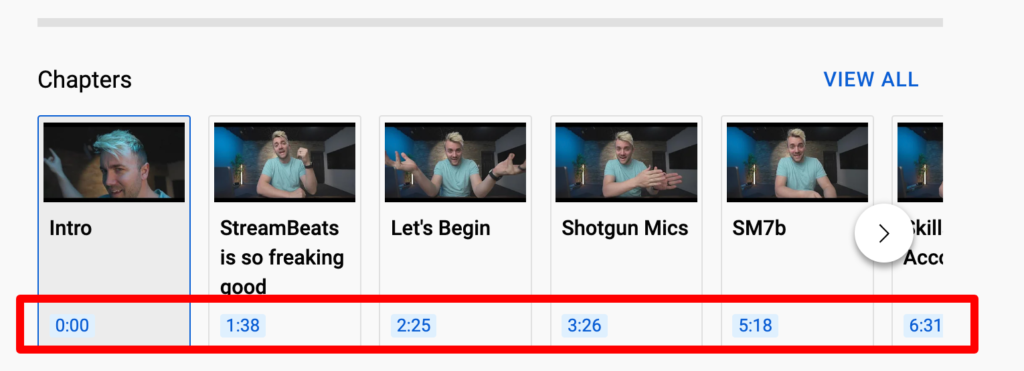
How to add YouTube chapters automatically
YouTube can generate chapters automatically based on its analysis of your audio and video content. Here’s the part most creators don’t realize: it’s already doing it. Automatic chapters are on by default for every new upload that’s eligible, so unless you’ve gone looking for the setting, a machine has been chaptering your videos for you.
The chapters YouTube Studio generates are imprecise and aren’t written with your keywords in mind. Don’t trust them. But you can definitely use them as a starting point. At the very least, they help with the most time-consuming part of chaptering your YouTube video, which is scrubbing the timeline to find chapter breaks. Be sure to check the chapter timings that YouTube suggests.
Chapters you manually enter into the description field will take precedence over YouTube’s auto-generated chapters. So the fastest workflow is to let YouTube take the first pass, then overwrite it with titles you actually chose.
Note: The setting is “Allow automatic chapters,” under SHOW MORE on the video details page, and it’s checked by default on new uploads. You can switch it off for one video there, or for your whole channel in Upload defaults under Advanced settings. Not every video is eligible, and it isn’t available to channels with active strikes.
How to write chapter titles that actually get found
This is the part worth slowing down for. Timestamps are mechanical. The titles next to them are the only part of this job where you can beat another creator who also added chapters.
Remember what a chapter title is competing for. It’s the text Google reads when it decides whether your video answers somebody’s question at 4:23. It isn’t a label for your own convenience.
The generic label problem
Look again at the cake example above. Ingredients is a perfectly accurate chapter title and it’s worth almost nothing in search. Nobody types “ingredients.” Compare:
2:19 – Ingredients2:19 – What you need for vegan chocolate cake (and the one substitution that ruins it)
Same chapter. Same video. One of them is a label and one of them is a search asset. The second one can win a Key Moment for someone searching a question you happen to answer, and the first one can’t.
How to pick the titles
- Write each one as a headline. Specific, descriptive, and readable on its own, out of context.
- Use the words people actually search. Not your internal shorthand for the section. If your audience says “frosting,” don’t write “icing.”
- Front-load the useful word. Chapter titles get truncated on small screens, so the distinguishing word goes first.
- Cover the questions, not the structure. “Intro” and “Outro” are structure. “Why most vegan cakes come out dense” is a question somebody typed into a search box this morning.
- Don’t stuff. Three chapters that each repeat your target keyword read like spam to a human, and the human is the one deciding whether to click.
The honest version of this advice is that you need to know what your audience searches before you can name a chapter after it. That’s keyword research, and it’s the same work that should be shaping your titles and descriptions anyway.
Pull your chapter titles from the questions people are already searching in your topic rather than guessing. TubeBuddy’s keyword tools will show you the phrasing and the search volume, which turns six chapter titles into six more chances to get found.
In short, treat your chapter list as six to ten extra headlines attached to the same video, because that’s what it is.
Can you add chapters to videos you already published?
Yes, and this is the highest-leverage version of this whole job. Open any existing video in YouTube Studio, add timestamps to the description, and YouTube applies the chapters to the live video within a few minutes. No re-upload, no reset of your views.
That makes chaptering one of the simplest projects you can run across a back catalogue, particularly on tutorial and how-to content that’s still getting traffic. If you’ve got a library of older uploads sitting idle, it belongs on the list of ways to get more views from videos you already published, alongside the slower work of building watch time.
How can I add chapters with TubeBuddy?
Adding chapters manually works fine. But if you’re optimizing multiple videos at once, or you want to be precise about your timestamps without constantly scrubbing back and forth through a video, TubeBuddy’s Chapter Editor is the faster answer.
The standard workflow for adding chapters means watching your video, pausing, switching to the description box, typing the timestamp and title, switching back, resuming, then repeating that for every section. It gets the job done, but it breaks your focus and adds up across a backlog of videos.
Chapter Editor puts your video and your chapter list in the same view. Watch, mark a chapter point, add a title without changing tabs or losing your place in the video. It also makes editing existing chapters significantly easier, which matters when you’re going back to clean up everything you should have done before posting.
Chapter Editor is included with TubeBuddy Pro and Legend and is part of TubeBuddy’s broader upload optimization workflow (the same toolkit that handles keyword research, A/B testing for thumbnails and titles, and bulk editing across your entire library.) If you’re spending real time on YouTube, this is the kind of tool that pays back its cost in minutes saved per upload.
FAQ – How to add chapters on YouTube
Yes. YouTube uses chapters as signals to understand your video’s content and structure, which helps it recommend your video to the right viewers. On Google, videos with chapters are eligible for Key Moments, the timestamped links that appear inside a video result and can send a viewer straight to the relevant moment. For YouTube-hosted video this works automatically from your description, with no markup to implement.
YouTube requires a minimum of three chapters, and the first must start at 0:00. There’s no set maximum, but most creators use five to ten chapters for a 10–15-minute video. More chapters aren’t always better. They should reflect genuine content breaks in your video, not arbitrary timestamps added just to hit a number.
No. This is a common claim and it isn’t a YouTube requirement. You need three timestamps minimum, the first at 0:00, listed in ascending order, with each chapter at least 10 seconds long. Gaps in coverage won’t stop your chapters from appearing.
Yes. Open any existing video in YouTube Studio, go to the description field, and add your timestamps. YouTube will apply the chapters to your live video within a few minutes. Going back and adding chapters to older how-to and tutorial content is one of the simplest optimization projects you can tackle on an existing library.
Manual chapters are timestamps you write yourself in the video description. Automatic chapters are generated by YouTube’s AI, which analyzes your content to identify natural section breaks, and they’re switched on by default for eligible uploads. Manual chapters give you control over the titles, which matters for SEO, and tend to be more accurate. Anything you write in the description overrides what YouTube generated.
Timestamps use the format MM:SS for videos under an hour, or H:MM:SS for longer content. The first chapter must be 0:00. Each timestamp needs a title, and chapters must be listed in chronological order. Chapters won’t appear on your video if the formatting is incorrect, so double-check before saving.
Get an unfair advantage on YouTube
Give your YouTube channel the upper hand and easily optimize for more views, more subs, and more of every metric that matters.


