- LMS Integrations

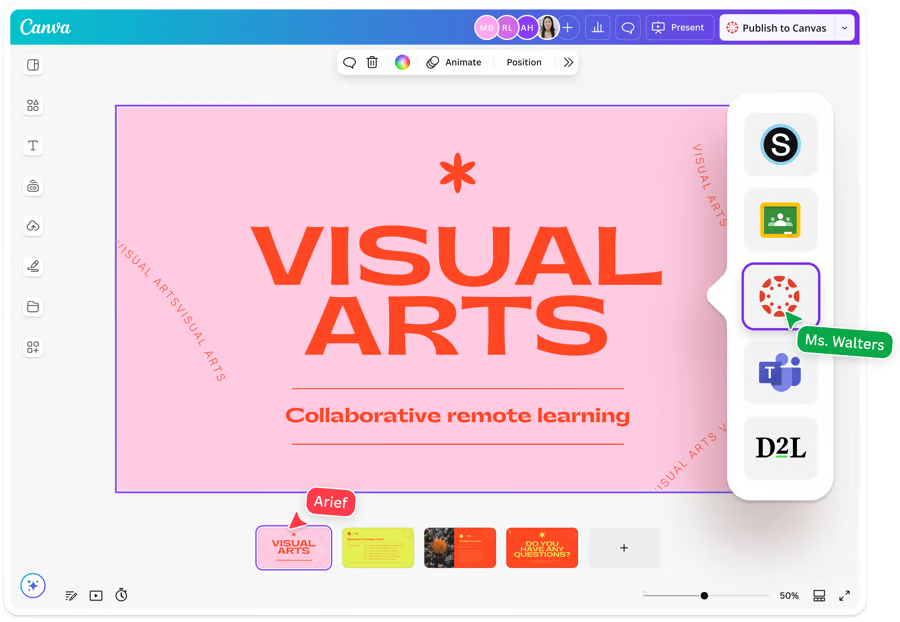
Integrate Canva with your LMS
Seamlessly integrate Canva with your learning management system. Set teachers up for success and drive student adoption.
Popular integrations
We've got integrations with the most popular classroom tools, with many more coming soon!


Looking for another LMS?
We want to empower everyone to do their best work in Canva. If there is another LMS you would like Canva to integrate with, please let us know.
Use Canva templates in your LMS assignment
Save time by customising our free, educational templates for all different subjects and grades.


FAQ
We currently integrate with Google Classroom, Canvas, and Schoology, as well as Microsoft Teams. We’ll soon integrate with Moodle, Blackboard, and D2L, too.
If your teachers are using individual Canva Education accounts, encourage them to use LTI to connect Canva to their LMS on a course-by-course level(opens in a new tab or window). Or, for an even more powerful Canva experience, contact us(opens in a new tab or window) to set up Canva district-wide wide SSO and district-wide LTI.
You can easily make Canva available on all courses in your LMS. Firstly you’ll need to enable the integration and access your consumer key and the shared secret – learn how to do so here(opens in a new tab or window). Ensure you sign in to the Canva account that was set up for your school or district.
If you are an admin, follow the instructions to enable the integration here(opens in a new tab or window). If not, please reach out to your IT administrator and share this page with them so they can set up the integration.
Next, follow the instructions to connect with Canvas(opens in a new tab or window) or Schoology(opens in a new tab or window).
You can easily make Canva available on all courses in your LMS. Firstly you’ll need to enable the integration and access your consumer key and the shared secret – learn how to do so here(opens in a new tab or window). Ensure you sign in to the Canva account that was set up for your school or district.
Next, follow the instructions to connect the account to Canvas(opens in a new tab or window) or Schoology(opens in a new tab or window).
